This article describes the steps for generating the production key and activating the production mode from your Merchant Back Office.
Generating the production key
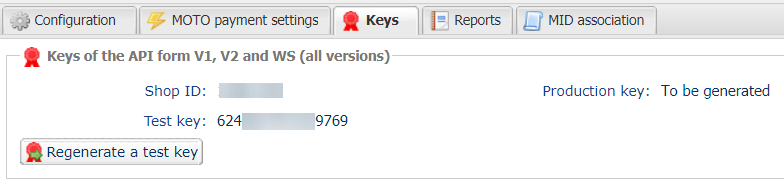
You can generate the production key via the menu Settings > Shop > [Shop name] > Keys tab.
If the production key has not yet been generated, To be generated is displayed.
To generate the production key, you must make test payments using at least one card number from each line in the provided list (i.e., 2 accepted payments and 2 refused payments):
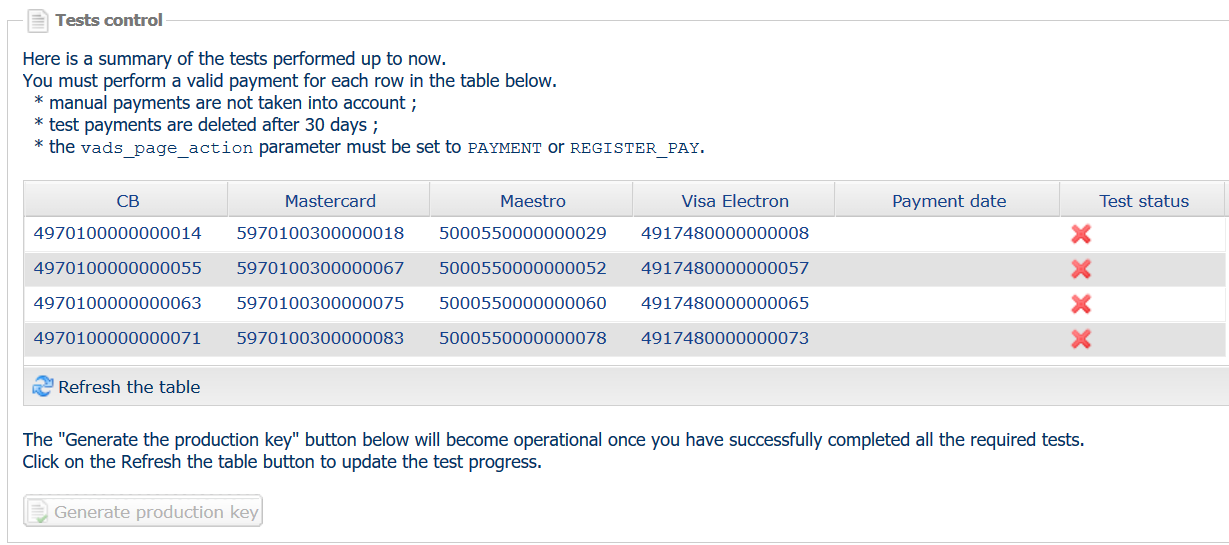
The button for generating the production key will become active as soon as you successfully complete all the required tests.
Click Refresh the table to update the progress of the tests. When a test card is used, its status is validated and appears tagged in green, as shown below.
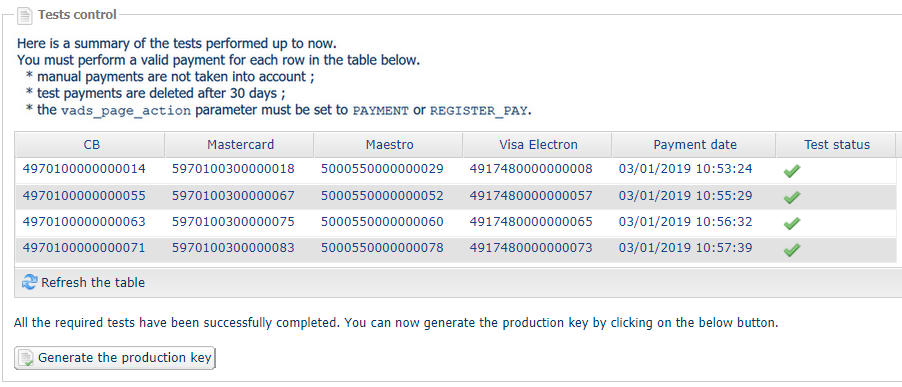
Once all the tests have been successfully completed, click Generate production key and the following message will appear:

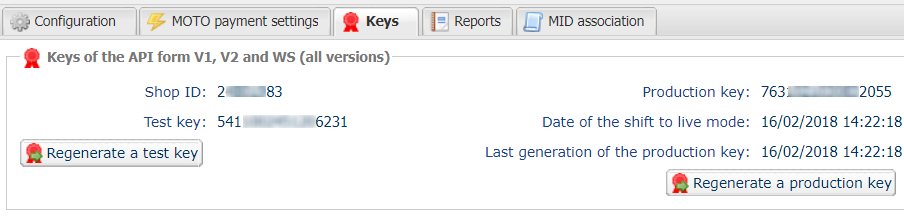
Click on "Yes". The production key becomes visible:
Updating your merchant website with the production key
In order to shift to production mode, you must complete the following steps according to your e-commerce solution. These steps are also mentioned in the e-mail that you received after generating the production key.
-
If you are using a payment module for open source solutions such as Magento, OsCommerce, Prestashop, etc.
- Go to the administration panel of the payment module in your e-commerce software.
- Enter your production key and shift the mode from TEST to PRODUCTION.
-
If you are a client of a SaaS e-commerce solution (Oxatis, Kingeshop, Powerboutique, Octave, ClickBoutique, etc.)
- See the documentation of your provider for entering the production key and shifting the mode from TEST to PRODUCTION.
-
If you have developed or had someone else develop your own software
- Modify or ask your webmaster to modify the variablevads_ctx_mode. Its value must be equal to "PRODUCTION" (in capital letters, without abbreviation).NotePRODUCTION must be written out in full, PROD is not recognized as a value.
- Modify or ask your webmaster to modify the key variable that was used by the production certificate for computing the signature.
- Modify or ask your webmaster to modify the variablevads_ctx_mode. Its value must be equal to "PRODUCTION" (in capital letters, without abbreviation).
Making a real payment to verify that everything works properly
We remind you that once the production settings are applied to your shop, you have to make a first real payment.
You will then be able to cancel the payment via your Merchant Back Office. The canceled payment will not be transmitted to the bank.
Note
For security reasons, the production key will be masked after the first real payment made with a real card.
It is strongly recommended to keep the key in a safe place (encrypted file, database etc.).
If you lose the certificate, you will be able to get a new one via your Merchant Back Office.
TEST mode: Test mode remains active even after your store goes on production. This allows you to maintain a development environment and continue to perform tests, for example when you add new features to your shop, without disturbing the production service.