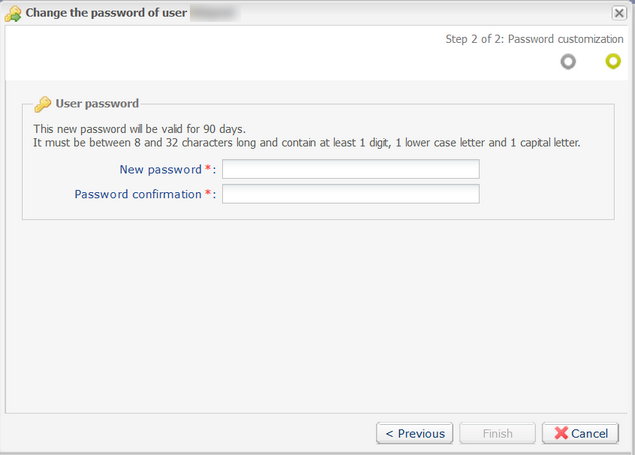
- Sign in to the Merchant Back Office:
https://scelliuspaiement.labanquepostale.fr/vads-merchant/
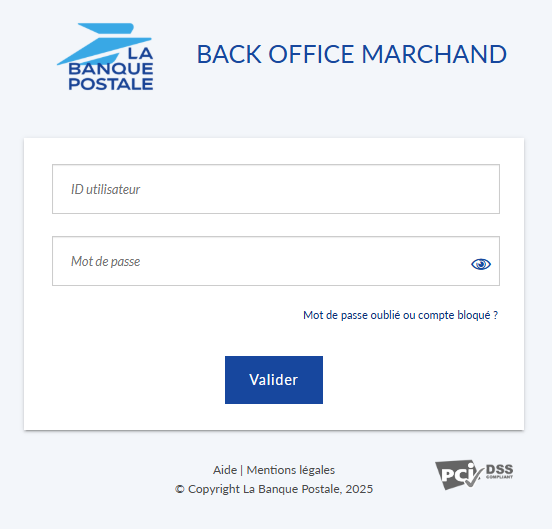
- Click on the Forgotten password or locked account? link.
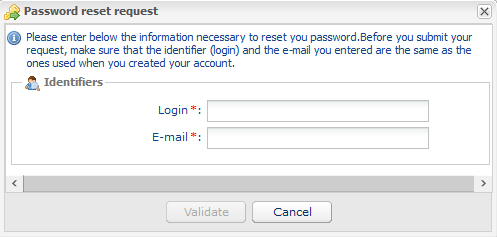
- Enter your login and the e-mail address associated with your account, then click Validate.
Your login information was sent to you by ne_pas_repondre@scelliuspaiement.labanquepostale.fr.
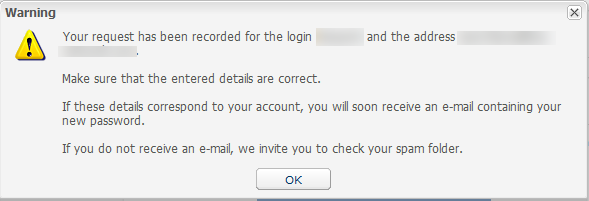
- Click the alert message below to return to the login page.
- Enter the login information provided in the password reset email and click Validate.
If you don't receive the password reset email, see the article Didn't receive the password reset email.
- Enter the security code, then click Next.
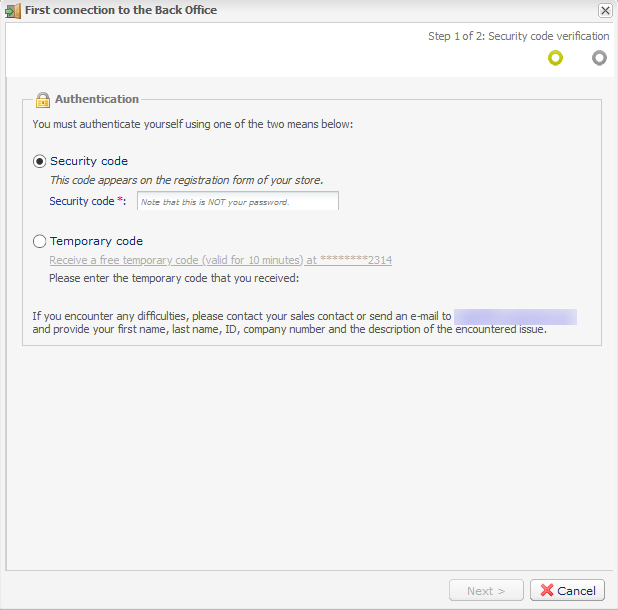
- If you don't know the security code, select Temporary Code via SMS.
This option is only available if you provided a valid mobile phone number when you registered. If not, please contact the store manager or the E-Banking Merchant Support Service to provide a valid phone number. You can then request a temporary code via text message.
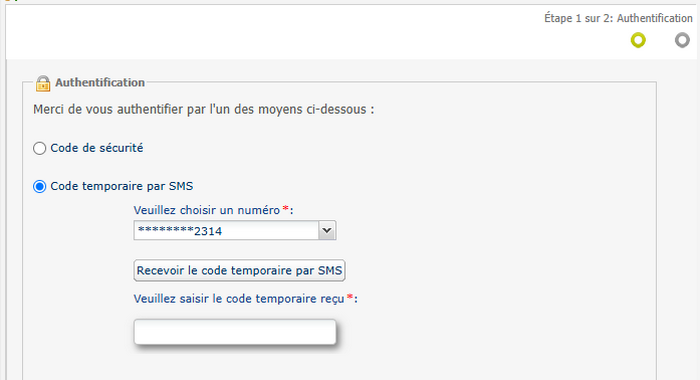
- Click Receive the temporary code via text message.
A temporary code will be sent to the mobile phone number associated with your user account.
If your account is linked to multiple phone numbers, you can choose which one to use.
- Enter the code you received via SMS, then click Next.
- Click Receive the temporary code via text message.
- Customize your new password by following the guidelines provided.