For security reasons or SEO, you have decided to secure the navigation on your website. This modification can have consequences on the communication between your website and the payment gateway. Here are the points you need to check to avoid any problems.
Changing the default URLs in your Merchant Back Office
- navigate to the menu Settings > Shop> Configuration
- In the Details section, change the protocol to use in the URL field.

- In the Return URL section, change the protocol to use in the Return URL of the shop in test mode and Return URL of the shop in production mode field.

- Save the changes.
Changing the notification URLs in your Merchant Back Office
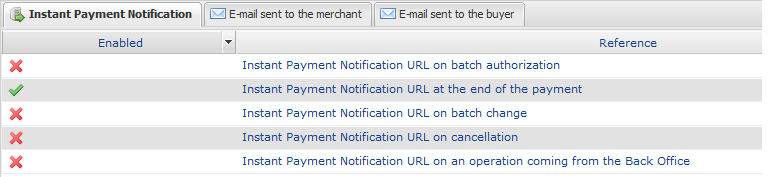
- Go to SettingsParamétrage menu > Notification rules and click on the Payment Notification URL call tab.
- For each enabled rule, double-click the rule name to access the rule settings.
- In the Instant Payment Notification URL of the API form V1, V2 section, change the protocol to use in TEST and PRODUCTION mode.
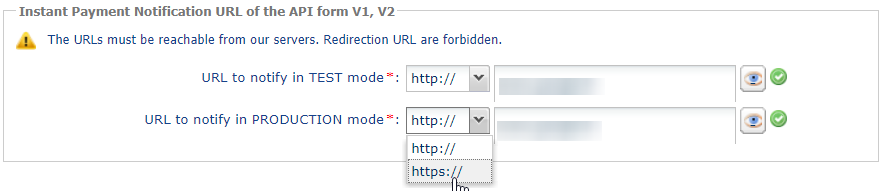
- Save the changes.
- Proceed in the same way for each activated rule.
Checking the URLs submitted by your website
- Do you use a proprietary solution?
Ask your webmaster (or your developer) to check if the different URLs are transmitted in the payment form and modify them accordingly.
Here is the list of fields to check:
Field label Description vads_shop_url Shop URL vads_url_return Default return URL to the shop vads_url_success Return URL to the shop in case of accepted payment vads_url_refused Return URL to the shop in case of declined payment vads_url_cancel Return URL to the shop in case of cancellation vads_url_error Return URL to the shop in case of technical error vads_url_check Instant Payment Notification URL at the end of the payment - Do you use a payment module provided by Scellius?
In this case no action is necessary. The module dynamically retrieves the URL configured on your website.
Simply change the protocol in the IPN configuration as described above.
Making a payment to check if the IPN works correctly
The most common problem encountered when switching to HTTPS is related to the configuration of the SSL certificate on the website.
Bad configuration will block communication between your website and the payment gateway.
To test the communication, follow these steps:
- Make a payment (in TEST mode or in PRODUCTION mode).
- Once payment is complete, identify the transaction in your Merchant Back Office (Menu Management > Transactions or TEST transactions if you made the payment in TEST mode.
- Double-click the transaction to view the transaction details.
- Click the Event log tab.
- Search for the Payment Notification URL call line.
- Verify that SENT appears in the Details column.
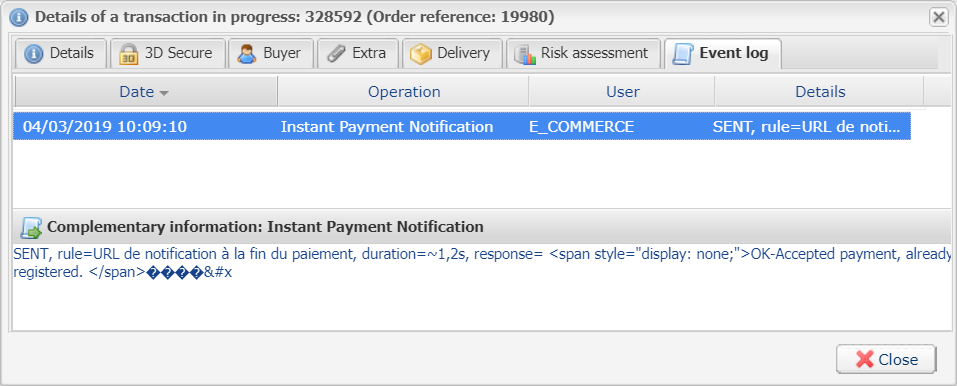
If it is not there, communication with the payment gateway has failed.
If you see the message FAILED_SSL_HANDSHAKE_EXCEPTION, see the article: What to do if you encounter an SSL issue?
Otherwise, see the following article: https://scelliuspaiement.labanquepostale.fr/doc/fr-FR/error-code/server-url-error.html
What to do in case of an SSL problem?
You have recently made a change to your website and since then there have been communication issues with the payment gateway.
For each payment, you receive a warning e-mail telling you that the communication error encountered is FAILED_SSL_HANDSHAKE_EXCEPTION.
To help you solve this problem, follow these steps:
- Perform a diagnosis on Qualys website: https://www.ssllabs.com/ssltest/
- Fill in the URL of your website and click on submit.
- Wait for the diagnosis (the test may take several minutes.
- When the test is complete, review the report and identify the anomalies reported in red.The java8u31 line corresponds to the test closest to the dialog with the payment gateway.
- Correct any errors and make a new payment.
- If the communication still fails, contact technical support: commercant.cnm@labanquepostale.fr