The buyer's authentication on their bank's page failed, Scellius is never at fault in this case. Only the buyer's browser interacts with the banks' authentication servers.
To find out why it failed:
- Sign in to the Merchant Back Office.
- Go to the Management > Transactions menu.
- Search for and double-click the declined transaction.
- Look for the Error details field in the Transaction Lifecycle section.
- You can click the Reason for refusal: Authentication link under Status for more details.
Remember to make sure that the buyer has not made another successful payment attempt with another payment method. Simply check the Multiple attempts tab.
| Value | Description |
|---|---|
| 39 |
3D Secure was refused for this transaction This code indicates that the authentication code was entered incorrectly. |
| 149 |
The payment session has expired Here are some of the possible causes:
|
| 205 |
3-D Secure - cannot reach DS or ACS. The authentication servers (DS/ACS) are down, preventing the buyer from logging in. |
| 206 |
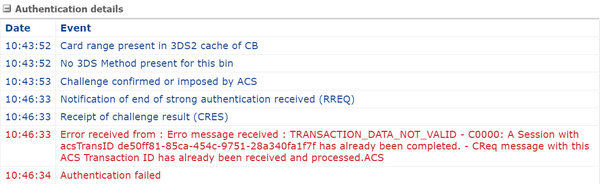
3D Secure - A technical error occurred during the process. This type of error can occur when the buyer performs the transaction using a cell phone with insufficient memory. The transaction fails during the authentication phase, and the ACS returns an error message that can be viewed on the 3-D Secure tab, in the authentication details. Example:“Error received from the ACS:TRANSACTION_DATA_NOT_VALID"
|
| 207 |
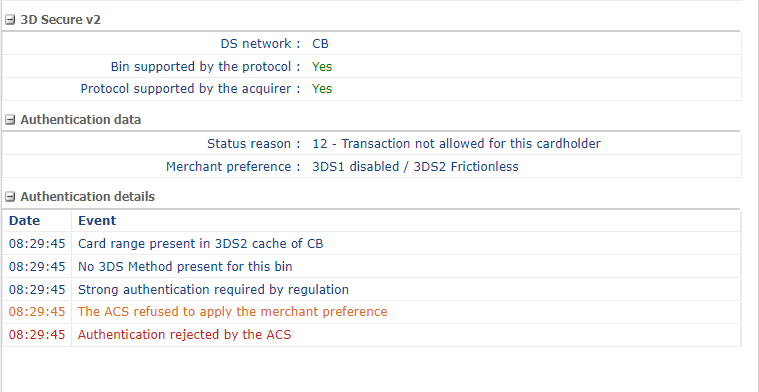
Refusal of the authentication by the issuer (Transaction not allowed for this cardholder This error appears when the authentication servers (ACS) reject the authentication.The buyer must ask their bank if the card used for the payment allows payments with 3DS2 authentication and/or payments via an e-commerce website. Status reason:"12-Transaction not allowed for this cardholder"
|